
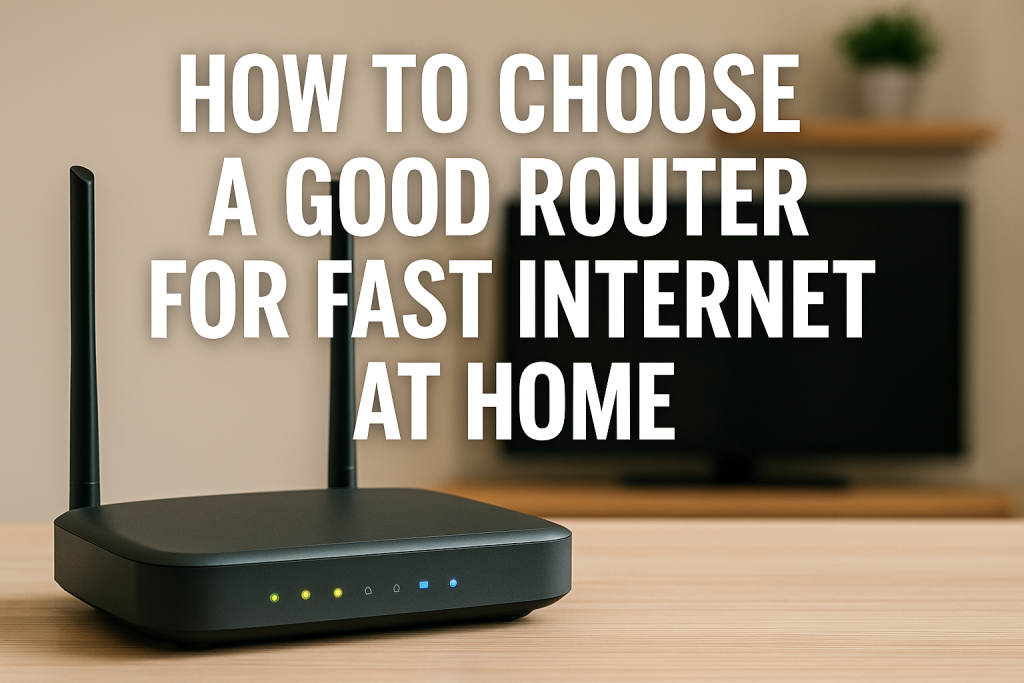
Are you frustrated with slow internet speeds, constant buffering, or dead zones in your home? You might blame your internet service provider, but the real culprit could be sitting right under your nose: your router.
Here’s the truth: even the fastest internet plan won’t deliver its full potential if you’re using an outdated or underpowered router. With more devices connected to home networks than ever before (smartphones, smart TVs, gaming consoles, security cameras, and smart home devices), choosing the right router has become essential for a smooth online experience.
In this comprehensive guide, you’ll learn exactly how to choose a router that matches your internet speed, covers your entire home, and handles all your devices without breaking a sweat. Whether you’re a casual browser, a remote worker, or a hardcore gamer, we’ll help you find the perfect router for your needs.
Understanding Router Basics: What You Need to Know
What Does a Router Actually Do?
A router is the central hub that connects all your devices to the internet. It takes the internet signal from your modem (or combined modem-router unit) and distributes it wirelessly throughout your home via WiFi, or through wired Ethernet connections.
Think of your router as a traffic controller for your internet connection. It manages data flow between your devices and the internet, ensuring everyone gets online smoothly.
Key Router Components That Affect Performance
- Processor (CPU): Handles data processing and multiple device connections
- RAM: Determines how many simultaneous connections the router can manage
- Antennas: Affect signal strength and coverage range
- Ethernet Ports: Provide wired connections for devices needing maximum speed
- WiFi Chipset: Determines wireless performance and standards supported
WiFi Standards Explained: Which One Do You Need?
Understanding WiFi Generations
WiFi technology has evolved significantly over the years. Here’s what you need to know about current standards:
| WiFi Standard | Marketing Name | Maximum Speed | Best For | Year Introduced |
|---|---|---|---|---|
| WiFi 4 | 802.11n | Up to 600 Mbps | Basic browsing, older devices | 2009 |
| WiFi 5 | 802.11ac | Up to 3.5 Gbps | Streaming, gaming, most homes | 2014 |
| WiFi 6 | 802.11ax | Up to 9.6 Gbps | Multiple devices, smart homes | 2019 |
| WiFi 6E | 802.11ax (6 GHz) | Up to 9.6 Gbps | Latest devices, congested areas | 2021 |
| WiFi 7 | 802.11be | Up to 46 Gbps | Future-proofing, cutting-edge needs | 2024 |
Which WiFi Standard Should You Choose?
WiFi 5 (802.11ac) remains a solid choice for most households with internet plans under 500 Mbps. It’s affordable and compatible with virtually all modern devices.
WiFi 6 (802.11ax) is the sweet spot in 2026. It offers improved performance in homes with many connected devices, better battery life for smartphones and tablets, and enhanced speed for internet plans up to 1 Gbps.
WiFi 6E adds access to the 6 GHz band, reducing interference in crowded environments like apartment buildings. Choose this if you have gigabit-plus internet or many WiFi 6E-compatible devices.
WiFi 7 is the newest standard but comes with premium pricing. It’s worth considering only if you’re future-proofing for the next 5-7 years or have specific needs for ultra-high bandwidth.
Matching Router Speed to Your Internet Plan
Understanding Speed Specifications
Router manufacturers advertise speeds like “AX3000” or “AC1900.” Here’s how to decode these numbers:
The number represents the combined maximum theoretical speed across all frequency bands. For example:
- AC1900: Up to 1900 Mbps total (1300 Mbps on 5 GHz + 600 Mbps on 2.4 GHz)
- AX3000: Up to 3000 Mbps total across bands
- AX6000: Up to 6000 Mbps total across bands
Matching Router to Internet Speed: Quick Reference
- Internet plan under 100 Mbps: AC1200 or higher
- 100-300 Mbps plan: AC1750 or AX1800
- 300-500 Mbps plan: AC1900 or AX3000
- 500 Mbps to 1 Gbps plan: AX3000 or AX5400
- 1 Gbps and above: AX6000 or higher
Pro Tip: Choose a router rated at least 25-30% faster than your internet plan to account for overhead, multiple device usage, and WiFi efficiency loss.
Coverage Area: Ensuring Strong Signal Throughout Your Home
How to Calculate Coverage Needs
Most standard routers cover approximately 1,500 to 2,500 square feet. However, actual coverage depends on several factors:
- Home construction: Concrete, brick, and metal reduce signal strength
- Number of floors: Multi-story homes need stronger signals or mesh systems
- Layout: Open floor plans work better than homes with many walls
- Interference: Other electronics, neighboring WiFi networks, and appliances affect performance
Solutions for Different Home Sizes
Small Apartments (Under 1,200 sq ft): A single standard router with dual-band capability works perfectly. Position it centrally for best coverage.
Medium Homes (1,200-2,500 sq ft): Choose a router with external antennas and strong output power. Consider tri-band if you have many devices.
Large Homes (2,500-4,000 sq ft): Opt for a high-powered router with beamforming technology, or consider a mesh WiFi system with one main router and one satellite unit.
Very Large Homes (Over 4,000 sq ft): Mesh WiFi systems are your best bet. These use multiple units that work together to blanket your entire home with seamless coverage.
What Is Beamforming and Why It Matters
Beamforming technology focuses WiFi signals directly toward your connected devices instead of broadcasting equally in all directions. This results in stronger connections, better speeds, and improved range, especially for devices farther from the router.
Number of Devices: Handling Your Connected Home
The Modern Multi-Device Challenge
The average household now has 10-15 connected devices, and that number continues to grow. Your router needs enough processing power and memory to handle simultaneous connections without slowdowns.
Device Capacity Guidelines
- 1-10 devices: Entry-level dual-band router
- 10-20 devices: Mid-range dual-band or entry-level tri-band router
- 20-40 devices: High-performance tri-band router with strong processor
- 40+ devices: Enterprise-grade or advanced mesh system with dedicated backhaul
Understanding MU-MIMO and OFDMA
MU-MIMO (Multi-User, Multiple Input, Multiple Output) allows your router to communicate with multiple devices simultaneously rather than one at a time. WiFi 5 routers support downlink MU-MIMO (router to device), while WiFi 6 routers add uplink MU-MIMO (device to router).
OFDMA (Orthogonal Frequency Division Multiple Access) is a WiFi 6 feature that divides channels into smaller sub-channels, allowing the router to serve multiple devices with different bandwidth needs more efficiently. This significantly improves performance in busy households.
Single Router vs Mesh WiFi Systems: Making the Right Choice
When a Traditional Router Works Best
A single high-quality router is ideal if you:
- Live in a home under 2,500 square feet
- Have relatively few obstructions between rooms
- Want the simplest setup possible
- Prefer maximum speed over extended coverage
- Have budget constraints
Advantages:
- Lower cost
- Simpler management
- Often faster speeds at close range
- More Ethernet ports for wired connections
When Mesh WiFi Systems Shine
Mesh systems consist of multiple units that work together as one seamless network. Choose mesh if you:
- Have a home larger than 2,500 square feet
- Experience dead zones with your current router
- Live in a multi-story home
- Want seamless roaming between access points
- Prioritize ease of setup and management
Advantages:
- Whole-home coverage without dead zones
- Seamless device handoff as you move around
- Easy expansion by adding more nodes
- Often includes user-friendly mobile apps
- Self-optimizing for best performance
Hybrid Approach: WiFi Extenders and Access Points
WiFi extenders boost your existing router’s signal but often create a separate network name and can reduce overall speed. They’re a budget-friendly option for extending coverage to specific problem areas.
Access points connect to your router via Ethernet cable and create additional WiFi coverage zones. They offer better performance than extenders but require wired connections.
Essential Router Features and Technologies
Dual-Band vs Tri-Band Routers
Dual-Band Routers operate on two frequency bands:
- 2.4 GHz: Longer range, slower speeds (up to 600 Mbps), more interference
- 5 GHz: Shorter range, faster speeds (up to several Gbps), less interference
Dual-band routers work well for most homes with moderate device counts.
Tri-Band Routers add a second 5 GHz band:
- 2.4 GHz: For smart home devices and long-range connections
- 5 GHz (Band 1): For streaming, browsing, and general use
- 5 GHz (Band 2): For gaming, 4K streaming, and bandwidth-intensive tasks
Tri-band is beneficial for homes with many devices or specific bandwidth-heavy activities.
Quality of Service (QoS)
QoS features let you prioritize certain types of traffic or specific devices. For example, you can ensure your video calls never lag by giving them priority over background downloads.
Modern routers often include intelligent QoS that automatically prioritizes traffic based on real-time needs.
Gigabit Ethernet Ports
While WiFi is convenient, wired Ethernet connections offer the fastest and most stable performance. Ensure your router has:
- At least 4 Gigabit Ethernet LAN ports for connecting devices
- 1 Gigabit Ethernet WAN port for connecting to your modem
- Consider 2.5 Gbps or higher ports if you have multi-gigabit internet
USB Ports for Network Storage
USB ports allow you to connect external hard drives or printers to your router, making them accessible to all devices on your network. Look for USB 3.0 or higher for fast file transfer speeds.
Security Features: Protecting Your Home Network
Essential Security Standards
WPA3 Encryption is the latest and most secure WiFi security standard. It protects your network from unauthorized access and offers improved security over older WPA2. Look for routers with WPA3 support, though they should also support WPA2 for compatibility with older devices.
Important Security Features to Look For
- Automatic firmware updates: Keeps your router protected against new threats
- Guest network capability: Isolates visitor devices from your main network
- Firewall protection: Built-in defense against external attacks
- VPN support: Allows secure remote access to your home network
- Parental controls: Manages content access and screen time for children
Setting Up Router Security Properly
- Change the default admin password immediately
- Create a strong, unique WiFi password
- Disable WPS (WiFi Protected Setup) if not needed
- Keep firmware updated regularly
- Enable WPA3 encryption when all devices support it
- Use the guest network for IoT devices and visitors
Budget Considerations: Getting the Best Value
Router Price Ranges and What to Expect
Budget Range ($50-$100):
- WiFi 5 or entry-level WiFi 6
- Dual-band operation
- Suitable for small apartments or light use
- 10-15 device capacity
- Basic security features
Mid-Range ($100-$250):
- WiFi 6 with good performance
- Dual-band or tri-band options
- Coverage for medium to large homes
- 20-30 device capacity
- Advanced features like MU-MIMO and beamforming
Premium Range ($250-$500):
- High-end WiFi 6 or WiFi 6E
- Tri-band operation
- Excellent coverage and performance
- 30-50+ device capacity
- Advanced security and management features
Enthusiast Range ($500+):
- WiFi 6E or WiFi 7
- Professional-grade features
- Maximum performance and coverage
- Unlimited device capacity
- Enterprise-level security
Is Expensive Always Better?
Not necessarily. The best router for you matches your specific needs without overspending on features you won’t use. A $150 WiFi 6 router often provides excellent performance for typical households, while a $400 router might offer minimal practical improvement for everyday use.
Gaming Routers: Do You Really Need One?
What Makes a Gaming Router Different?
Gaming routers include specialized features designed to reduce latency (ping) and ensure smooth gameplay:
- Gaming-optimized QoS: Automatically prioritizes gaming traffic
- DFS channels: Access to less-congested WiFi channels
- Advanced processor: Handles intensive gaming traffic without lag
- Low-latency modes: Minimizes ping times
- Gaming-specific interfaces: Shows real-time network statistics
When Gaming Routers Make Sense
Consider a gaming router if you:
- Play competitive online games where every millisecond counts
- Stream your gameplay on platforms like Twitch or YouTube
- Download large game files frequently while gaming
- Have multiple gamers in your household
- Experience lag with your current router during gameplay
For casual gaming, a quality mid-range WiFi 6 router with good QoS typically provides excellent performance at a lower cost.
Brand Reliability and Customer Support
Top Router Manufacturers in 2026
Established Brands:
- ASUS: Known for high-performance routers and gaming models
- TP-Link: Offers excellent value across all price ranges
- Netgear: Strong reputation for reliability and coverage
- Linksys: User-friendly interfaces and solid mesh systems
- Google (Nest WiFi): Simplified mesh systems for easy setup
Considerations Beyond Brand:
- Warranty length (typically 1-3 years)
- Customer support availability and quality
- User reviews and satisfaction ratings
- Firmware update frequency and support duration
Setup and Management: Ease of Use Matters
Traditional Web Interface vs Mobile Apps
Web Interface:
- More detailed configuration options
- Better for advanced users
- Works on any device with a browser
- Can be more complex to navigate
Mobile Apps:
- Simplified setup process
- Easy day-to-day management
- Push notifications for issues
- Often includes parental controls and guest network management
- Perfect for non-technical users
Most modern routers offer both options, giving you flexibility based on your comfort level.
Features That Simplify Management
- Self-configuration: Automatically detects optimal settings
- Network visualization: Shows all connected devices at a glance
- Speed testing: Built-in tools to test your internet speed
- Device management: Name, group, and prioritize your devices
- Usage monitoring: Track bandwidth consumption by device
Router Placement: Maximizing Your WiFi Performance
The Science of Router Positioning
Router placement significantly impacts your WiFi performance. Follow these proven guidelines:
Optimal Placement:
- Central location within your home
- Elevated position (on a shelf or mounted on a wall)
- Away from thick walls, metal objects, and electronics
- In the open, not inside cabinets or behind furniture
What to Avoid:
- Placing near microwaves, cordless phones, or baby monitors
- Hiding in closets or behind TVs
- Positioning in corners or basements
- Placing against exterior walls
Antenna Positioning Tips
If your router has external antennas:
- Position one antenna vertically and one horizontally for best coverage across different device orientations
- Point antennas toward areas where you need strongest signal
- Adjust angles after setup based on performance testing
When to Upgrade Your Current Router
Signs You Need a New Router
Replace your router if you experience:
- Regular connection drops or instability
- Slow speeds despite a fast internet plan
- Dead zones in parts of your home
- Router is more than 5 years old
- Doesn’t support current security standards
- Can’t handle your number of connected devices
- Lacks features you need (like guest network or parental controls)
Getting More Life from Your Existing Router
Before upgrading, try these optimization steps:
- Update firmware to the latest version
- Change WiFi channels to reduce interference
- Adjust router position for better coverage
- Reduce the number of connected devices
- Reset router to factory settings and reconfigure
- Add a WiFi extender for specific problem areas
Environmental Considerations and Energy Efficiency
Router Power Consumption
Modern routers typically consume between 5-20 watts of electricity, running 24/7. While not huge, choosing energy-efficient models can save money over the router’s lifetime.
Energy-Saving Features to Look For:
- Automatic power scheduling (turns off WiFi during unused hours)
- Low-power mode for periods of inactivity
- Energy Star certification
- Efficient power supplies
Eco-Friendly Disposal
When replacing your old router:
- Check with your ISP if they have a take-back program
- Recycle through local e-waste programs
- Donate working routers to schools or charities
- Never throw electronics in regular trash
Future-Proofing Your Router Investment
Technologies Worth Investing In
Must-Have for Future-Proofing:
- WiFi 6 at minimum (WiFi 6E for new purchases in 2026)
- WPA3 security support
- Gigabit Ethernet ports
- Regular firmware updates from manufacturer
Nice-to-Have for Longevity:
- Multi-gig WAN port (2.5 Gbps or higher)
- USB 3.0 ports
- 160 MHz channel support
- Upgradeable firmware for new features
How Long Should a Router Last?
A quality router typically provides good performance for 3-5 years. However, technological advances mean you might want to upgrade sooner to take advantage of new standards, better security, or improved performance.
Plan to reassess your router needs every 3-4 years or when upgrading your internet service to significantly faster speeds.
Step-by-Step Router Selection Process
Your Personal Router Selection Checklist
Step 1: Assess Your Internet Plan
- What is your current internet speed?
- Are you planning to upgrade soon?
Step 2: Count Your Devices
- How many devices connect to WiFi regularly?
- Do you have smart home devices, security cameras, or IoT devices?
Step 3: Measure Your Space
- What is your home’s square footage?
- How many floors do you have?
- Are there areas with poor current coverage?
Step 4: Identify Your Usage Patterns
- Heavy streaming or gaming?
- Work from home with video calls?
- Multiple users competing for bandwidth?
Step 5: Set Your Budget
- What can you comfortably spend?
- Is this a short-term or long-term investment?
Step 6: Choose Between Single Router or Mesh
- Based on home size and layout
Step 7: Select WiFi Standard
- WiFi 5, WiFi 6, or WiFi 6E based on needs and budget
Step 8: Compare Specific Models
- Read reviews from trusted sources
- Check for needed features
- Verify warranty and support options
Some Suggested Gadgets Review
Peeps Eyeglass Cleaner Review
SafeSleeve Air-Tube Headphones Review
Talky AI Buds Review
invisaWear Review
Statik Snap-N-Charge Review
Zithion-X Rechargeable Batteries Review
Aerless Review
Hear Direct Wireless TV Headset Review
MosqiShock Review
Common Router Buying Mistakes to Avoid
Pitfall #1: Buying Based Only on Price
The cheapest option rarely delivers long-term satisfaction. Similarly, the most expensive router doesn’t guarantee the best fit for your needs.
Pitfall #2: Ignoring Your Internet Speed
A router can’t make your internet faster than what your ISP provides, but the wrong router can definitely slow things down.
Pitfall #3: Overlooking Coverage Needs
A powerful router in the wrong location or a single router in a large home leads to frustration. Match your solution to your space.
Pitfall #4: Not Considering Future Needs
Your household’s internet demands will likely grow. Choose a router that can handle growth over the next few years.
Pitfall #5: Falling for Marketing Hype
Theoretical maximum speeds rarely matter in real-world use. Focus on features that impact daily performance like device capacity, coverage, and reliability.
Real-World Router Recommendations by Use Case
Best Router for Small Apartments
Ideal specs:
- WiFi 6, AC1900 or AX1800
- Dual-band operation
- Coverage up to 1,500 sq ft
- 15-20 device capacity
Why it works: Provides modern performance without overspending on range you don’t need.
Best Router for Family Homes
Ideal specs:
- WiFi 6, AX3000 or AX5400
- Tri-band preferred
- Coverage 2,000-3,500 sq ft
- 25-40 device capacity
- Robust parental controls
Why it works: Handles multiple simultaneous users streaming, gaming, and working without slowdowns.
Best Router for Remote Work
Ideal specs:
- WiFi 6, AX3000 minimum
- Quality of Service (QoS) features
- Dual-band or tri-band
- Reliable uptime and stability
- Guest network for separating work devices
Why it works: Prioritizes video conferencing and work applications while maintaining stable connections.
Best Router for Gamers
Ideal specs:
- WiFi 6 or 6E, AX5400 or higher
- Tri-band operation
- Gaming-specific QoS
- Low-latency optimization
- Gigabit Ethernet ports
Why it works: Minimizes ping, reduces lag, and ensures consistent performance during competitive gaming.
Best Router for Smart Homes
Ideal specs:
- WiFi 6 with strong 2.4 GHz performance
- High device capacity (30+)
- Tri-band to separate IoT traffic
- Strong security features
- IFTTT or smart home integration
Why it works: The 2.4 GHz band provides better range for smart home devices, while additional bands handle regular traffic.
Testing Your New Router: Ensuring Peak Performance
Initial Setup Verification
After installing your new router, run these tests:
Speed Test:
- Use Speedtest.net or Fast.com
- Test both WiFi and wired connections
- Compare results to your internet plan speed
- Test at different locations in your home
Coverage Test:
- Walk through your home with a smartphone
- Check signal strength in every room
- Identify any remaining dead zones
- Adjust router position if needed
Device Test:
- Connect all your devices
- Verify each connects properly
- Test simultaneous usage
- Monitor for any connectivity issues
Optimization After Testing
Based on test results:
- Adjust router placement for better coverage
- Switch WiFi channels if experiencing interference
- Configure QoS settings for your usage priorities
- Set up guest networks and security features
- Fine-tune 2.4 GHz and 5 GHz band settings
Conclusion: Making Your Final Router Decision
Choosing the right router doesn’t have to be overwhelming. By understanding your internet speed, home size, device count, and specific needs, you can confidently select a router that delivers fast, reliable internet throughout your home.
Remember these key takeaways:
Start by matching your router to your internet plan speed, ensuring it can handle at least 25-30% more than your subscribed bandwidth. Consider your home’s size and construction when deciding between a single router and a mesh system. WiFi 6 offers the best balance of performance and value for most households in 2026, while WiFi 6E makes sense for those with gigabit-plus internet or many modern devices.
Don’t overlook security features like WPA3 encryption and automatic firmware updates, which protect your network and personal information. Prioritize reliability and customer support from established brands, as these factors significantly impact your long-term satisfaction.
Your Next Steps:
- Use the selection checklist above to identify your specific requirements
- Set a realistic budget based on your needs, not wants
- Research 2-3 router models that match your criteria
- Read recent reviews from trusted technology websites
- Purchase from retailers with good return policies
- Set up and test thoroughly within the return window
A good router is an investment in your digital life, supporting work, entertainment, communication, and smart home functionality. Take the time to choose wisely, and you’ll enjoy fast, reliable internet for years to come.
Ready to upgrade your home network? Start by identifying your internet speed and home size, then use this guide to find the perfect router for your needs.
Frequently Asked Questions (FAQs)
How often should I replace my home WiFi router?
You should consider replacing your router every 3-5 years to maintain optimal performance and security. However, specific triggers for replacement include consistent connection issues, inability to support your internet speed, outdated security protocols, or when your router can no longer handle your number of connected devices. If your router is more than 5 years old and lacks WiFi 6 support or WPA3 security, replacement is strongly recommended. Additionally, when upgrading to gigabit internet or higher, your router should be evaluated to ensure it can fully utilize the faster speeds.
Can my WiFi router make my internet faster than my subscribed plan?
No, a router cannot increase your internet speed beyond what your internet service provider delivers. However, a poor-quality or outdated router can significantly reduce the speeds you receive, preventing you from getting the full performance of your plan. The router’s job is to efficiently distribute the internet connection throughout your home without becoming a bottleneck. Think of it like a highway: your ISP determines the speed limit, but a good router ensures traffic flows smoothly without unnecessary congestion. To maximize your subscribed speeds, choose a router rated at least 25% faster than your plan.
What’s the difference between a router, modem, and modem-router combo?
A modem connects your home to your internet service provider’s network, converting the signal from your ISP (cable, fiber, or DSL) into something your devices can use. A router takes that internet connection and distributes it to multiple devices in your home via WiFi or Ethernet cables, while managing traffic between devices. A modem-router combo unit combines both functions into a single device, which saves space and simplifies setup. While combo units are convenient, separate devices often provide better performance and flexibility, allowing you to upgrade one component without replacing both. If you rent equipment from your ISP, it’s typically a combo unit.
Do WiFi extenders work as well as mesh systems for eliminating dead zones?
WiFi extenders and mesh systems both extend coverage, but mesh systems generally provide superior performance. Extenders work by receiving your router’s signal and rebroadcasting it, which can cut available bandwidth in half and often requires switching between network names as you move through your home. Mesh systems use multiple units that communicate efficiently with each other, creating a seamless network with one name throughout your home. Mesh systems offer better speeds, automatic device handoff between nodes, and easier management. However, WiFi extenders cost significantly less and work well for extending coverage to a single problem area in smaller homes. For comprehensive whole-home coverage in spaces over 2,500 square feet, mesh systems are worth the additional investment.
Is it worth upgrading to WiFi 7 in 2026, or should I stick with WiFi 6?
For most households, WiFi 6 remains the sweet spot offering excellent performance at reasonable prices. WiFi 7 provides impressive specifications with maximum speeds up to 46 Gbps, but few devices currently support it, and the technology carries a significant price premium. You’ll benefit from WiFi 7 if you’re future-proofing for the next 5-7 years, have multi-gigabit internet service (2.5 Gbps or higher), regularly transfer large files between devices on your network, or purchase cutting-edge devices immediately upon release. However, for typical internet plans (under 1 Gbps), standard usage patterns, and budget-conscious buyers, WiFi 6 or WiFi 6E provides more than adequate performance. Consider WiFi 6E if you live in a congested area like an apartment building, as it offers access to the less-crowded 6 GHz band at a more reasonable price point than WiFi 7.